

Start with a site visit so the installer understands the room's size, acoustics, and existing cabling before recommending hardware. Choosing certified equipment and having it professionally installed and configured avoids the connectivity and compatibility issues that come with DIY setups.
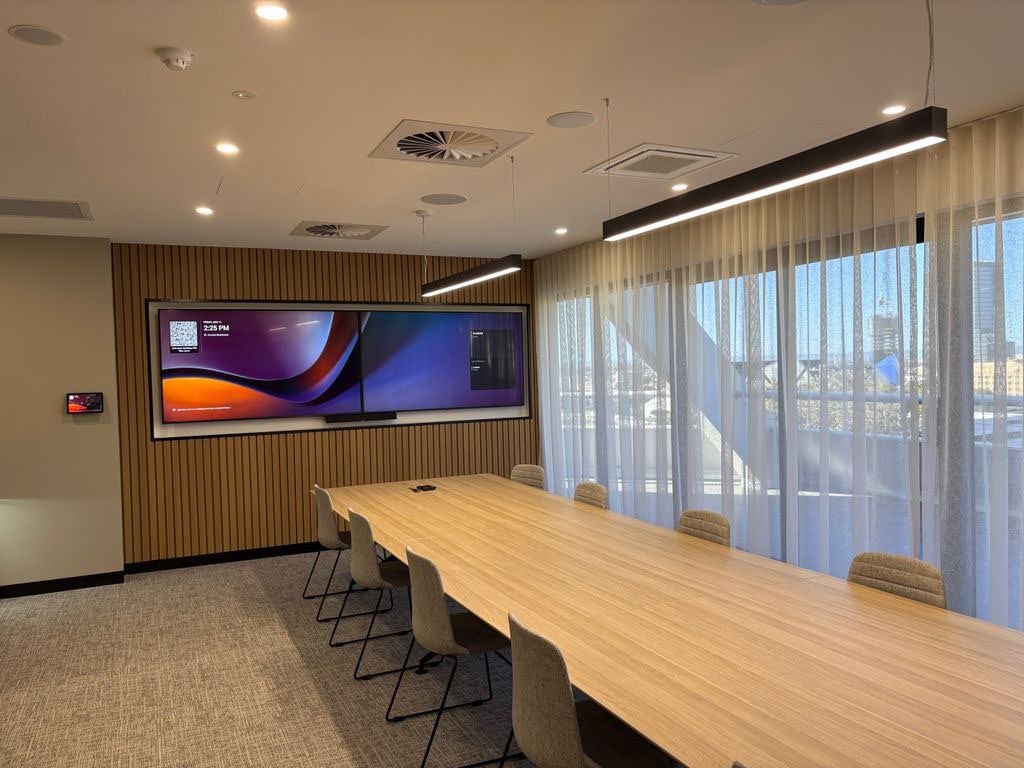
Microsoft Teams Rooms improve collaboration by turning any meeting space into a fully connected hub where in-room and remote staff can see, hear, and work with each other as if they were sitting at the same table.
Instead of a laptop balanced on a stack of books and a phone propped up for audio, you get proper cameras, microphones, and screens working together so nobody misses a word or a whiteboard scribble.
If your business is still relying on a laptop and a shared screen for video calls, you’re likely losing time, focus and good ideas in every meeting.
A properly installed Microsoft Teams Rooms setup fixes that by giving every room the same professional experience, so meetings start on time whether people are in Perth, Sydney, or working from home.
At 3 Monkeys AV, we install and support these systems for businesses across Australia.
What Are Microsoft Teams Rooms and How Do They Support Modern Workplaces?
Microsoft Teams Rooms are purpose-built meeting spaces fitted with certified hardware and software that connect directly to Microsoft Teams.
Rather than plugging in a laptop and hoping the camera angle works, the room itself becomes the device. Staff walk in, tap a screen or console, and the meeting starts.
This matters because modern workplaces are rarely just one office anymore. Teams are split across home offices, branch locations, and client sites, and they need a way to collaborate that doesn’t depend on everyone being in the same building.
Good Microsoft Teams Rooms collaboration gives every meeting room the same reliable experience, so staff spend their time on the conversation instead of fighting with cables or dodgy audio.
What Challenges Do Businesses Face With Traditional Video Conferencing Solutions?
Traditional video conferencing setups create more friction than most businesses realise, and that friction adds up across hundreds of meetings a year. Common problems include:
- Laptop cameras that sit too low or too far away, cutting off half the room from view.
- Built-in microphones that pick up keyboard clatter, air conditioning noise, and echo instead of clear voices.
- Meetings starting five to ten minutes late because someone can’t find the right cable or login.
- Remote staff struggling to see whiteboards, sticky notes, or printed documents held up to a laptop camera.
- IT teams fielding the same support tickets over and over because every room is set up differently.
How Do Microsoft Teams Rooms Improve Collaboration in Hybrid Work Environments?
Microsoft Teams Rooms collaboration really shows its value here, because hybrid meeting collaboration only works when remote and in-room participants get an equal seat at the table, not an afterthought.
The camera automatically frames whoever is speaking, the microphones pick up voices clearly from anywhere in the room, and content shared on screen is visible to everyone at the same time.
This changes how hybrid meetings actually feel. A few practical examples of hybrid meeting collaboration in action:
- Someone joining from home can read a whiteboard drawing just as clearly as someone sitting three metres from it.
- A remote team member’s video tile stays visible and prominent instead of shrinking into a tiny corner box.
- Content shared from a laptop, tablet or phone appears instantly on the room screen without cables.
- Meeting recordings and transcripts capture the whole conversation, not just the loudest voice in the room.
What Are the Key Microsoft Teams Rooms Features for Better Meetings?
The Teams Rooms features that matter most are the ones staff barely have to think about, because that’s what makes adoption stick. A well-specified room typically includes:
- One-touch joining: staff tap a single button on the console to start a scheduled meeting, no dial-in codes or login screens.
- Auto-framing cameras: the camera automatically zooms and pans to keep speakers centred and visible.
- Noise-cancelling microphones: background sound like typing, shuffling papers or hallway chatter gets filtered out.
- Content sharing without cables: laptops, phones and tablets connect wirelessly to the room screen.
- Room booking panels: a screen outside the door shows room availability and lets staff book on the spot.
- Interactive displays: touch screens that support whiteboarding, annotation and real-time collaboration on documents.
None of these Teams Rooms features work in isolation. They’re designed to run together as one system, which is why getting the hardware combination right for your room size and use case matters more than picking individual gadgets.
How Do Microsoft Teams Rooms Create a More Engaging Meeting Experience?
Microsoft Teams Rooms create a more engaging meeting experience by removing the small frustrations that make people mentally check out of video calls. When audio is clear, video is sharp, and content sharing is instant, people actually pay attention instead of asking “can you hear me?” for the third time.
Interactive displays add another layer here. Staff can annotate directly on shared documents, sketch out ideas on a digital whiteboard, and save that work automatically so nobody has to photograph a physical whiteboard before it gets wiped.
For brainstorming sessions, client presentations, or training days, this kind of hands-on interaction keeps energy up and makes meetings feel less like a call and more like a real working session.
Good audio visual equipment also plays a quiet but important role in engagement. A screen that’s sized correctly for the room, positioned at the right height, and paired with speakers that don’t distort at higher volumes makes a bigger difference to how engaged people feel than most businesses expect.
How Can Businesses Choose the Right Microsoft Teams Rooms Solution?
Choosing the right setup starts with matching the hardware to your room size and how your team actually works, not picking whatever package looks cheapest. Key things to consider:
- Room capacity, since a huddle room for four people needs very different gear than a boardroom for sixteen.
- Existing cabling and network infrastructure, which affects installation complexity and cost.
- Whether staff need Basic or Pro Teams Rooms licensing depending on features required.
- Acoustic conditions in the room, including hard floors, glass walls, or high ceilings that affect sound quality.
- Long-term support needs, since rooms need occasional troubleshooting, updates, and maintenance.
Closing Thoughts
Microsoft Teams Rooms collaboration turns ordinary meeting rooms into spaces where hybrid and in-person teams can actually work together properly, not just talk at each other through a laptop screen.
From auto-framing cameras to one-touch joining and interactive whiteboarding, the right hardware combination removes the friction that makes video calls tiring and unproductive.
If your business is ready to upgrade its meeting spaces, getting the setup right from day one saves time, money, and a lot of IT headaches down the track.