How Do Video Conferencing Companies Help Businesses Build Scalable Meeting Spaces?

By Francis Fragomeni,
Why Businesses in Perth Are Upgrading to Microsoft Teams Rooms in 2026?

A scalable meeting space can grow with a business without a technology overhaul. Video conferencing solutions achieve this with flexible equipment and consistent room designs. The systems can support different meeting sizes and work styles.

According to AHRI’s 2025 Hybrid and Flexible Working Report, 29% of employers in Western Australia mandate full‑time employees to be in the physical office at least four days a week. A majority still operate hybrid or flexible arrangements. So, a well-designed meeting room can make it easier for employees, clients, and partners to join the same conversation, no matter the location. 

What Makes a Video Conferencing Solution Scalable for Businesses?

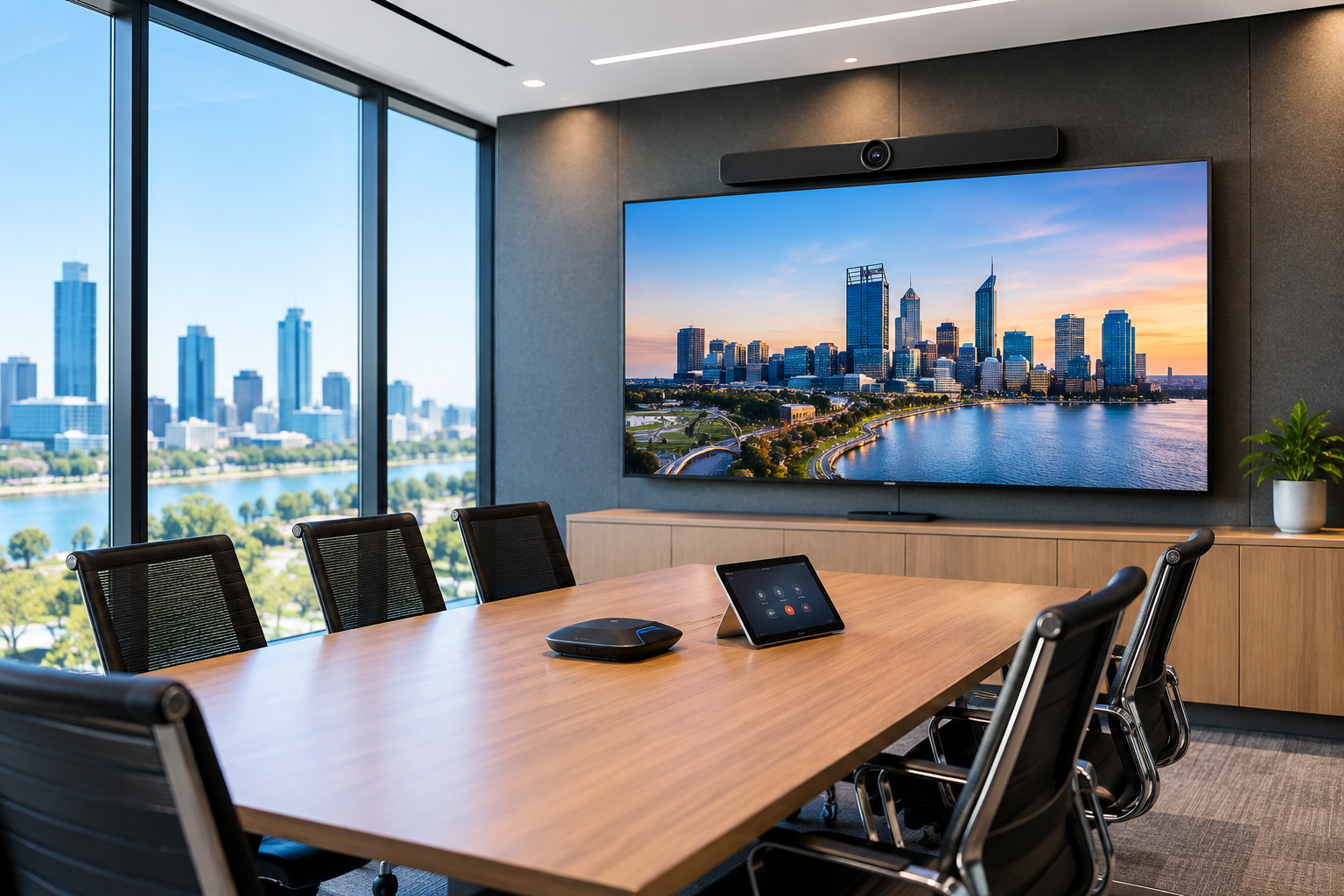
A scalable video conferencing setup works just as well in a four-person huddle room today as it does across a floor of boardrooms in three years. The key is designing every room on a common platform, so growth means adding rooms, not starting again. Here’s what that looks like in practice:

  1. Flexible room configurations

Each room gets the camera, microphones, display and speakers its size and acoustics need, all built on the same platform. When a room changes use, components can be swapped or added without ripping out the whole system.

  1. Consistent user experience

Staff shouldn’t have to relearn how to start a meeting in every room. Standardising on one platform, such as Microsoft Teams Rooms, with the same touch controller everywhere means one tap to join, whether it’s a huddle room or the boardroom. 

  1. Support for different room sizes

A huddle room might need nothing more than an all-in-one video bar. A large boardroom may need multiple cameras with speaker tracking, ceiling microphone arrays, a DSP and dual displays. A scalable design matches each room to the right tier, without over or under-spending. 

  1. Easy integration

Modern video conferencing systems for businesses can integrate with meeting platforms, room-booking systems, displays and other workplace technology. Rooms then show availability, auto-join scheduled meetings and fit into how your IT team already works. 

  1. Room to expand

A business may add more meeting rooms, or introduce new collaboration technology over time. The initial system design of the video conferencing solution should allow for these changes.

  1. Simple management and support

Once you have more than a handful of rooms, checking each one by hand doesn’t work. Cloud management tools such as Teams Rooms Pro let your AV partner monitor every room remotely, push updates and often fix faults before staff notice them. 

How Do Video Conferencing Companies Design Systems for Different Meeting Spaces?

The best video conferencing companies in Perth start with the room and how people use it. The goal is to match the technology to the room’s size, layout, acoustics, and meeting requirements.

  1. Assess the room

Specialists look at factors such as:

  • Room dimensions to determine camera coverage and microphone pickup range
  • Seating capacity to know how many people need to be seen and heard correctly
  • Table layout for proper camera positioning
  • Natural and artificial lighting to ensure that faces remain visible on camera 
  • Acoustic conditions that affect microphone and speaker performance
  • Display position of the video conferencing equipment
  • Available power and network connections
  1. Define how the room will be used

A two-person huddle room has different requirements from a boardroom for client presentations. Designers consider whether the room will mainly support the following activities:

  • Video meetings
  • Presentations
  • Hybrid meetings
  • Training sessions
  • Team collaboration
  • Large group discussions
  1. Select the right camera setup

Camera choice depends on the room and number of participants. Smaller spaces may only need a single camera whilst larger meeting spaces and boardrooms require wider views or multiple cameras. Additionally, larger rooms benefit from speaker tracking or multiple camera angles.

  1. Plan microphone coverage

In a hybrid meeting, remote attendees judge the whole meeting by how well they can hear. Microphones should be chosen and positioned for the seating layout, so every seat sits within a mic’s pickup zone. Beamforming ceiling or table arrays can focus on whoever is talking while rejecting air conditioning hum and corridor noise. 

  1. Choose suitable displays and audio

Display size in a video conferencing solution should be suitable for the viewing distance and room layout. Larger rooms have remote participants as well. Such rooms would benefit from multiple screens so people can see remote attendees and shared content easily. 

  1. Build a consistent control system

A single touch panel that starts the meeting, selects the source and adjusts volume removes most of the frustration from meeting rooms. Using the same interface in every room means staff learn it once and can walk into any space and get started.

  1. Allow for future expansion

A well-designed system plans for the next stage, whether that’s extra rooms, upgraded cameras, more displays or integration with room booking and building systems. Building in spare cabling, rack space and network capacity now saves major rework later.

A specialist for audio-visual in Perth designs each room around its purpose and maintains consistency in the overall technology.

What Types of Video Conferencing Systems Can Businesses Use?

Businesses can choose from compact all-in-one conferencing bars, complete meeting-room packages or flexible wireless systems. 3 Monkeys AV supplies solutions from leading brands like Logitech, Yealink, Poly, Crestron, Cisco, AVer and Barco. We select equipment in accordance to room size, acoustics, and how the space will be used.

All-in-one conferencing bars

All-in-one bars combine the camera, microphones, speakers and processing into a single unit, making them practical for smaller meeting spaces. For example, the Logitech MeetUp is designed for huddle and small conference rooms. It has an extra-wide field of view, integrated audio and automatic framing. Other options include the Logitech MeetUp 2, Logitech Rally Bar Huddle, and Yealink A20 and A40 Bars.

Complete Microsoft Teams Room systems

For businesses that want a dedicated meeting-room experience, integrated packages are the best option. Packages can combine conferencing bars with a touch controller or alternative room equipment.

The Logitech Rally Bar + TAP IP package supports Microsoft Teams Rooms and can also operate in BYOD or appliance mode. You can add more microphone pods for larger rooms that require greater audio coverage.

Modular conferencing systems

Larger boardrooms may need more than an all-in-one bar. Modular systems can add microphone pods, separate speakers, cameras, and control equipment to extend coverage across the room. Additionally, they have microphone pods available for larger spaces. 

Wireless video conferencing systems

Wireless conferencing systems connect participants to the room’s AV equipment without requiring multiple cables. The Barco ClickShare CX-50 connects laptops to room cameras, microphones, speakers, and displays. It also supports wireless content sharing, touchback, annotation and collaboration across large meeting spaces and boardrooms.

Which system suits which space?

The table below will help you match your meeting space with the ideal video conferencing solution approach

Meeting spaceCommon system approach
Huddle roomAll-in-one video bar or compact room system
Small meeting roomAll-in-one or dedicated room system
Medium meeting roomAdvanced video bar or expandable room system
BoardroomModular AV system with multiple cameras and professional audio
Training roomIntegrated or modular AV with content-sharing features
Large or divisible spaceProfessional AV architecture with multiple cameras, microphones and displays

How Can Video Conferencing Solutions Support Different Business Needs?

Video conferencing solutions support varying business needs because the technology is designed around a company’s workflow. A single meeting infrastructure can support collaboration, presentations, training and communication across locations.

  • Hybrid meetings: Employees can join meetings from the office or remotely. Cameras and microphones help remote participants see and hear the people in the room clearly.
  • Communication between offices: Businesses with teams in Perth, Sydney, Melbourne or regional WA can use video conferencing to communicate without requiring everyone to reach the physical meeting space.
  • Client and supplier meetings: A reliable room setup can provide a more consistent experience when businesses meet with customers, suppliers and external partners.
  • Team collaboration: Teams can share all types of content during meetings. This makes video conferencing useful for everyday project discussions.
  • Training and onboarding: Businesses can use meeting rooms to deliver training to employees in different locations, which is easier with a suitable camera and audio setup.
  • Executive and board meetings: Boardrooms often need stronger audio coverage and displays. The system can be designed to support in-person and remote participants.
  • Growing teams: As a company adds employees or offices, additional rooms can follow the same technology standards. There is no need to create a completely different setup in every room.

What Should Businesses Consider When Choosing a Scalable Video Conferencing System?

Business should look beyond the camera and screen when choosing a scalable conferring system. The system should suit the current meeting environment whilst leaving enough flexibility for future changes.

1. Size and layout of the area

A small huddle room and a large boardroom have different AV requirements. Consider seating capacity, table position, viewing distance, and room layout before selecting equipment.

2. Audio quality

Poor audio can make a meeting difficult even when the video is clear. Microphones should capture voices across the meeting area, while speakers should deliver clear sound without excessive echo.

3. Camera coverage

The camera should provide an appropriate view of everyone in the room. Larger spaces may benefit from wider-angle and multiple-camera or speaker-tracking configurations.

4. Meeting platform compatibility

Check whether the system works with the platforms employees and clients use. This can include Microsoft Teams, Zoom, and similar common conferencing services.

5. Ease of use

Your staff should be able to join a meeting and use different controls without technical assistance. Simple room controls can reduce delays at the start of meetings.

6. Integration with your existing technology

The conferencing system should work with the existing IT technology in the workplace, such as displays, room-booking tools, and wireless presentation systems.

7. Network and connectivity requirements

Video meetings rely on a stable network connection. Businesses should consider bandwidth, wired and wireless connectivity, network security, and IT requirements as part of the system design.

8. Management and maintenance

Larger deployments can become difficult to manage if every room uses different equipment. Centralised monitoring and remote management make it easy to identify IT issues. 

9. Future upgrade options

Technology and workplace needs change. Choose a system that allows components to be upgraded or expanded, not replaced. 

Conclusion

Scalable meeting spaces are built around more than video calls. They combine the right AV tools, software, and room controls for how people work. Working with an experienced video conferencing specialist can help businesses match technology to each meeting space and create a consistent experience across rooms. Meetings then become easier for employees and their rising collaboration needs.

What Can Go Wrong When Video Conferencing Equipment Is Installed Without Professional Setup?

By Francis Fragomeni,
When Video Conferencing Equipment Is Installed Without Professional Setup

A video conferencing room looks simple from the outside: a camera, microphones, a display and a meeting room computer. In practice, small installation mistakes show up in every call. A camera mounted too high, microphones placed without regard to the seating plan, or a codec on a congested network leads to clipped speech, echo, frozen video and meetings that start ten minutes late.

Professional installation means every component is chosen to work together, configured for your network, and tested on Teams or Zoom before handover. That matters because most workplaces now run a mix of in-room and remote attendees.  AHRI’s 2025 research found that 29% of employers required full-time staff onsite four days a week, which still leaves a day where many meetings include people dialling in.

Below, we cover the most common problems caused by poorly installed video conferencing rooms, and how a proper installation fixes them.

What Can Go Wrong With Incorrect Video Conferencing System Installation?

Poor installation can turn a business meeting room into a source of technical interruptions. This leads to misunderstandings amongst colleagues and lost productivity. The most serious problems occur when equipment is selected without considering the room’s size, acoustics, lighting, furniture, network, and software platform. Here are the main consequences:

  • The camera’s field of view does not include all the participants.
  • Voices sound distant or distorted.
  • Echo from incorrect speaker and microphone placement creates confusion.
  • Incorrect camera placement prevents participants from seeing what they should.
  • Displays show the wrong input or no image at all.
  • Wireless presentation works inconsistently.
  • Touch controllers or room-booking panels fail to communicate with the system.
  • Network and device configuration issues lead to unstable calls.
  • Employees start using their personal laptops because the room system is difficult to use.
  • Productivity suffers as the IT staff troubleshoots video conferencing equipment.

Professional video conferencing installation services ensure that your existing AV systems and network infrastructure integrate fully with your conferencing platforms. Professionals from 3 Monkeys AV also provide optional training to your team so that the system works smoothly in future meetings. 

What Are the Most Common Video Conferencing Installation Problems?

Most problems related to video conferencing equipment setup occur when the installation does not focus on designing a complete meeting-room experience. The following are typical problems businesses face: 

  • Incorrect camera positioning: A camera mounted above a tall display, or off to one side, gives remote attendees a view of foreheads and empty chairs. Mounting it close to eye level and centred on the table keeps everyone in frame and makes eye contact feel natural. 
  • Inadequate microphone coverage: Every microphone has a set pickup pattern and range. If mics aren’t specified and placed for the actual seating layout, people at the far end of the table sound distant or drop out completely.
  • Incorrect placement of speakers: Speakers too close to the microphones feed sound back into the call, causing echo for remote participants. Aiming them at glass walls or hard surfaces adds reverberation that makes speech harsh and hard to follow. 
  • Unmanaged cabling: Loose cables under tables and behind displays get kicked, unplugged during cleaning, or strained at the connector. Properly routed, secured and labelled cabling keeps the room reliable and makes future servicing faster. 
  • No compatibility among AV components: Mixing cameras, mics and room computers that were never tested together leads to USB bandwidth limits, resolution mismatches between the computer and display, and devices the conferencing app can’t recognise. Certified, matched components avoid these conflicts from day one. 

How Can Incorrect Equipment Setup Affect Audio and Video Quality?

Incorrect video conferencing equipment setup prevents participants from responding to the discussion. Hard-to-hear participants hinder communication and this results in disengagement.

Audio problems

Audio is often more important than video. Remote participants may tolerate a less-than-perfect image, but they cannot contribute if they cannot hear the discussion.

ProblemLikely causeEffect on the meeting
EchoSpeaker audio picked up by nearby microphones Participants hear their own voices repeated
Muffled speechMicrophone is blocked or is too far from participants Remote attendees ask people to repeat themselves
Uneven volumePoor microphone placement or lack of coverageSome people are clear while others are difficult to hear
Background noiseMicrophone positioned near HVAC outlets, doors or busy walkwaysParticipants are unable to follow the conversation
Harsh or distorted soundIncorrect speaker placement or audio processingListening becomes tiring

Video problems

Video quality can suffer when there are issues in the camera positioning. It causes the following problems:

  • The camera is positioned outside the ideal viewing angle.
  • Lighting is directed behind participants rather than towards their faces.
  • The display or camera uses unsuitable resolution settings.
  • The camera is mounted where furniture or room dividers obstruct the view.
  • Auto-framing settings are not configured for the room.
  • The camera cannot capture both the presenter and participants.
  • Screen sharing is connected to the wrong input.

How Can Poor Video Conferencing System Installation Cause Connectivity Issues?

Poor video conferencing system installation can cause connectivity issues when devices are not correctly connected to the network. They must also be connected to the right power supply and to one another. The result of connectivity problems is dropped calls and missing audio or room controls that don’t respond.

Network configuration

Many conferencing systems depend on stable network access for meeting connections. With regular firmware updates and calendar integration, the conferencing platforms work properly. A system may be physically connected but still unreliable in the following cases:

  • The network port is inactive.
  • The device is placed on the wrong VLAN.
  • Firewall rules block required traffic.
  • The wireless signal is weak or congested.
  • Network quality varies significantly during busy periods.

Power and cable faults

Intermittent power or poorly secured connections can cause a room system to restart. In the middle of the meeting, it can lose its display signal or disconnect peripherals. HDMI and USB cables may also fail to give you a stable signal if they are too long or damaged. They must be suitable for the required resolution.

Wireless presentation issues

Wireless systems in any workplace need proper configuration. Their integration with the network access and display is essential. If the wireless presentation device is not properly connected to the display or conferencing peripherals, users may share a screen but keep struggling to share room audio or video. Wireless system testing should cover the following scenarios:

  1. Join a scheduled meeting from the room controller.
  2. Call a participant.
  3. Share the screen
  4. Switch between room and laptop audio
  5. Use the camera when sharing content
  6. End the meeting and return the room to its normal state.

How Can Professional Video Conferencing Equipment Setup Prevent These Problems?

Professional video conferencing system installation treats the meeting room as a connected system in the office. A good integrator follows a set process from first site visit to handover:

  • The installer reviews the size of the room, furniture, and seating capacity.
  • Display location, viewing distance, power availability and network access are assessed.
  • The right video conferencing equipment is chosen that matches the room’s size and acoustics. 
  • Professional installers install all the audio and video systems correctly. They ensure that each component is integrated with each other. 
  • The video conferencing system is configured to the business’s chosen platform, user accounts, calendar, room name and security requirements.
  • While planning the video conferencing equipment installation, the professionals leave enough room for managing upgrades and identifying faults.
  • After testing each component and system, the installers provide a quick demonstration. They provide device information and a clear support process.

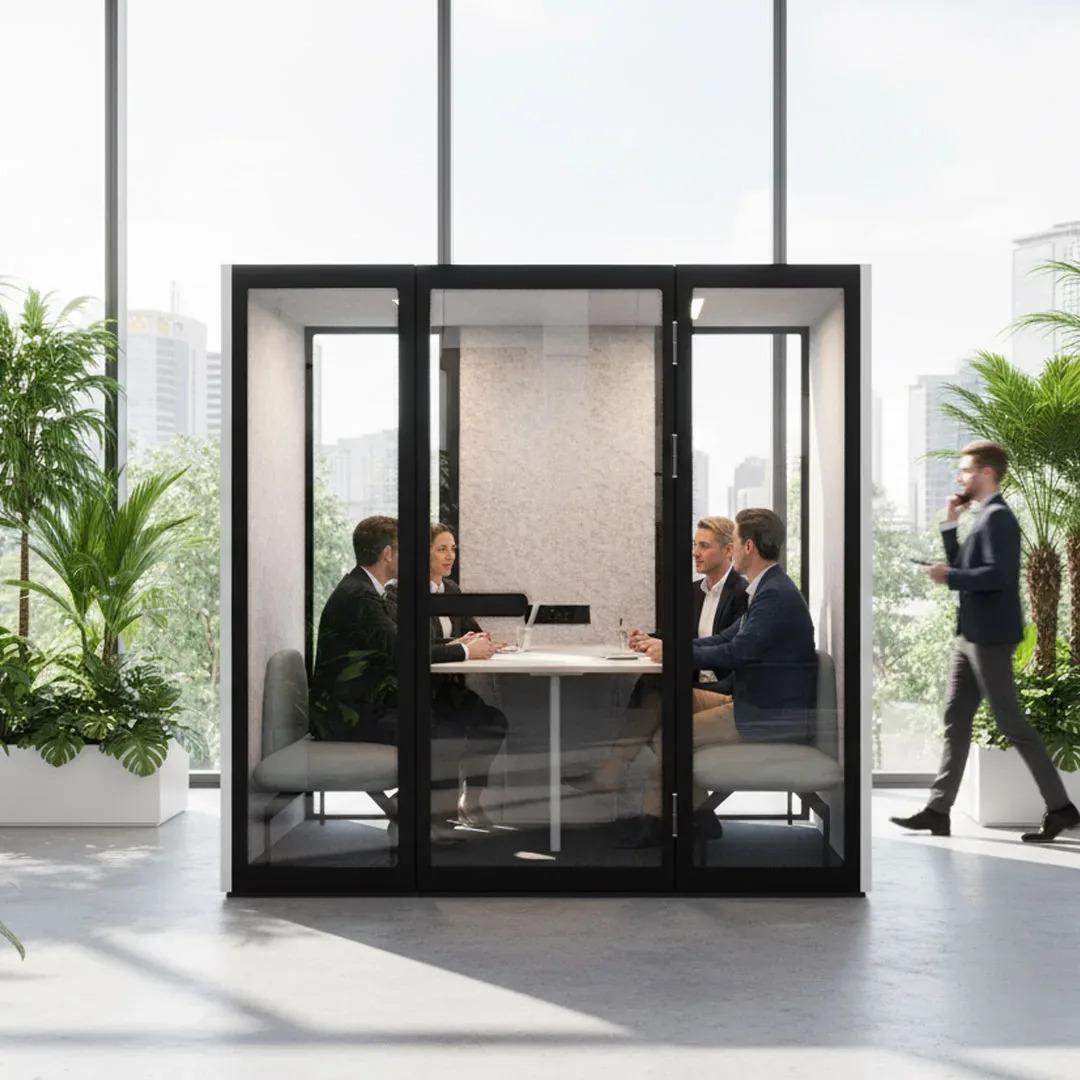
An experienced AV specialist will also look beyond the equipment list. In a noisy open-plan office, that might mean recommending acoustic pods for workplaces or a simpler all-in-one conference bar. The goal is a room your team can walk into and start a meeting without calling IT.

Closing Thoughts

Installing video conferencing equipment without professional planning causes frustrating meeting experiences. These issues do not stem from one device alone. They occur when your equipment does not match the room or has not been tested as a part of a complete system.

Professional video conferencing equipment installation helps you select suitable technology and position it correctly. The experts configure the platform and validate real meeting scenarios. Businesses get custom solutions and proactive support for all issues related to video conferencing. 

3 Monkeys AV provides video conferencing solutions for small to big meeting rooms. We provide Logitech conferencing products, Tap controllers, and ClickShare wireless presentation systems to optimise your collaboration. Our team is ready to help you whenever you need.

How Can Office Pods Help Businesses Manage Noise Without Redesigning the Entire Workplace?

By Francis Fragomeni,
Office Pods Help Businesses Manage Noise

Office pods manage noise by offering freestanding quiet zones. You get a private space without knocking down walls or changing your floor plan.

Open-plan layouts are a common sight across Perth’s commercial hubs. From St George’s Terrace to West Perth, businesses love the collaborative vibe they allow. But high noise levels can quickly ruin employee focus. This does not require a costly retrofit. You can install office pods for noise reduction into your existing layout. They give staff a quiet place to work or take calls instantly.

How can office pods help reduce workplace noise?

Acoustic pods for offices trap and block sound. High-density acoustic materials like Mass Loaded Vinyl (MLV) and acoustic PET stop noise from getting in or out of the space. In Perth, many local companies have busy sales floors and open workstations side-by-side, creating a high level of background chatter. 

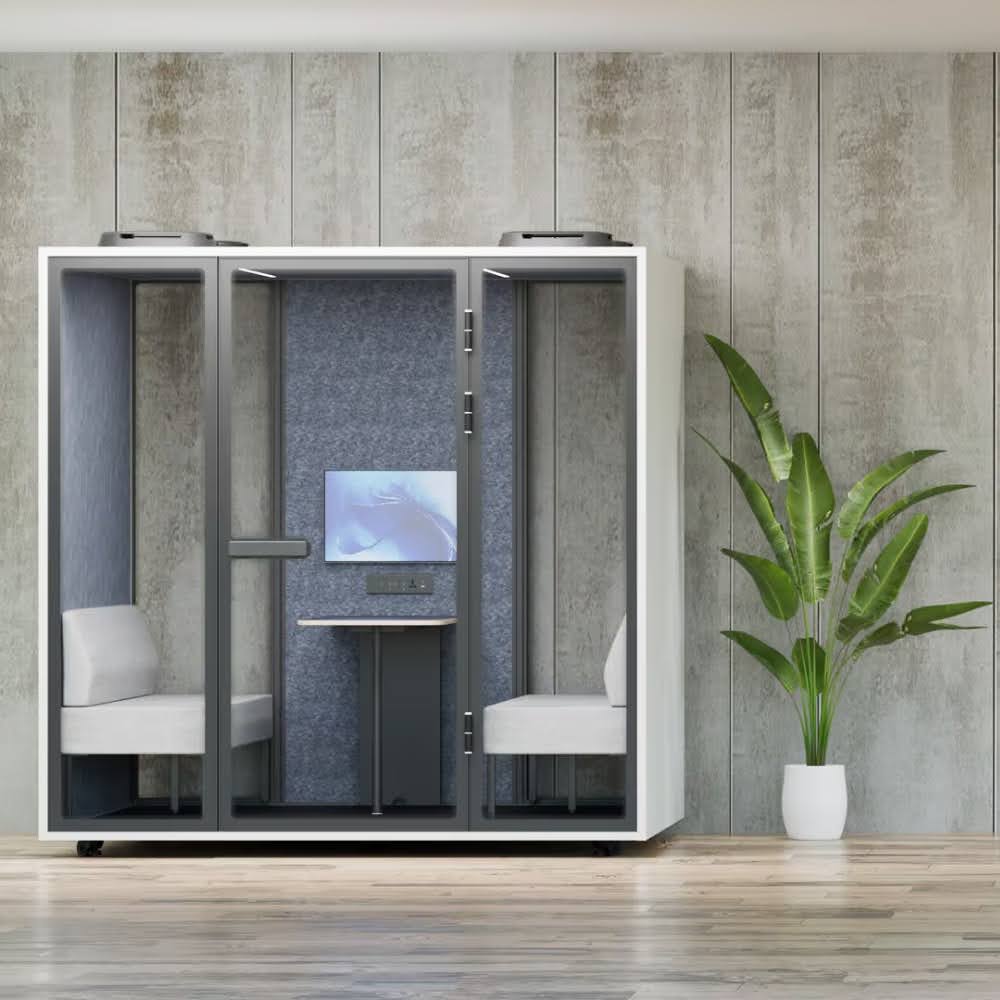
Acoustic pods use sound-absorbing fabrics and double-glazed glass. When a worker steps inside, the loud office fades away. This setup prevents loud talkers from distracting the whole floor. It gives focused workers a silent retreat. Acoustic office pods by 3 Monkeys AV can be customised with different sizes, layouts, and finishes to suit the branding and needs of any workplace. 

So, when you add office pods for noise reduction to your floor plan, you control acoustics where you need it most. Here is the technology that allows office pods to reduce workplace noise:

  • Soundproof structure made of thick exterior shells and sound-absorbing insulation.
  • Acoustic panels prevent sound waves from floating within the closed space.
  • Sealed construction using noise-isolating ventilation systems.
  • Double-glazed glass for better speech privacy.

What makes soundproof office pods different from regular meeting spaces?

Soundproof office pods are highly engineered and require zero construction. Traditional meeting rooms need builders and permits and are built with permanent drywall and construction. In contrast to regular meeting rooms that require electrical work and ventilation, soundproof office pods are pre-built. They are plugged straight into a standard power outlet. This is a huge advantage for businesses on commercial leases.

FeatureModular Office PodsRegular Meeting Spaces
InstallationFast, plug-and-play setup.Requires builders and council permits.
PortabilityMoveable. Take it to your next Perth office.Permanent. Left behind when your lease ends.
AcousticsA fully sealed room, greatly reducing noise.Noise often leaks through the ceiling grid.
CostsFixed pod price with low cost installation.Expensive build and electrical work.
Capacity 1 to 6 people Designed for bigger group gatherings

You can also equip your acoustic pods with various add-ons, such as audio-visual equipment for virtual meetings. As one of the top video conferencing companies in Perth, 3 Monkeys AV lets you add BYOD video conferencing solutions to your pod. They come with a mini display, a webcam, and a docking station for quick plug-and-play access. 

Where can businesses use office pods for noise reduction?

You can place office pods in open-plan work floors, near busy corridors, in breakout zones, or inside unused corners.

Commercial and industrial rents are at a premium across Welshpool, Osborne Park, and the Perth CBD. Businesses must maximise every square metre without putting a stop to daily operations. You can place pods exactly where noise peaks in your workplace.

  • Between open-plan desk clusters: Pods act as acoustic buffers between teams. Staff can get inside for important calls without disturbing their neighbours.
  • Near reception and client waiting areas: They offer private spaces for quick consults or confidential onboarding in the front foyer.
  • Adjacent to kitchen and breakout zones: Placing pods near social hubs blocks out the clatter of food and beverage utensils. They prevent lunch chatter from spreading into work bays.
  • On industrial or warehouse floors: Mining and logistics hubs place pods inside warehouse offices for a dust-sealed and quiet booth for team check-ins.
  • In dead hallway space and alcoves: Narrow office alcoves and end-of-hall spaces often go unused. A compact pod turns a dead floor area into a functional private meeting nook.

What types of workplace noise can office pods help manage? 

Office pods block out loud phone calls and collaborative chatter. They muffle noise emanating from office machinery like computers and printers. 

Many businesses need to deal with overlapping sounds. Mining and engineering companies often have constant video calls with remote Pilbara sites. This creates continuous and loud talking. 

High-quality acoustic pods for offices absorb these loud voices. They also block out the hum of air conditioning and heavy foot traffic. When you step inside, you get immediate relief from the harsh workplace distractions.

How can businesses add office pods without redesigning the workplace? 

You can assemble office pods in a space and plug them into a standard wall socket. There is no need to move existing desks or tear down walls. The space-saving design of the pod maximises space and integrates into any workplace layout.

Office pod units are freestanding with simple levelling feet or heavy-duty castors. You just measure a gap on your floor plan and have the pod assembled on-site. Usually, the experts from the office pod showroom will help you set up the pod properly in the available space. Here are some ways to add pods without redesigning the entire workplace:

  • Place pods in underused spaces like empty corners and wide corridors.
  • Choose freestanding pods and move them wherever you want to create a private space like furniture.
  • Use office pods with built-in power strips and USB ports to prevent the need for getting electrical work done. 
  • Create functional zones in a massive open space by placing acoustic office pods. 

What should businesses consider when choosing an office pod for noise reduction?

Office pods should have certified acoustic ratings for speech level reduction. They should have multi-layered acoustic panels and double-glazed soundproof glass. The pods enhance the efficiency of your office’s space by providing ample room to work. Consider the following factors when choosing office pods:

  • ISO 23351-1:2020 acoustic rating for speech privacy and 25 dB to 30 dB rating of noise reduction
  • Pods should be made with thick panels and sound-absorbing interior upholstery.
  • Office pods should fulfil your technology needs with add-ons like built-in video conferencing equipment
  • To enable employees to stay productive for long hours, pods should have comfort features like adjustable desks, ventilation, and power outlets.
  • You should be able to customise office pods’ exterior aesthetics and interior features to suit your workplace design and branding. 

Closing thoughts

As teams grow or move, traditional open-plan offices limit flexibility. The noise problem has increased with the rise of hybrid work and video calls. But with acoustic pods, you can fix it immediately without expensive renovations. Adding modular quiet zones protects your team’s focus and keeps your lease agreements intact.

At 3 Monkeys AV, we specialise in high-quality, soundproof pods that provide the perfect quiet workspace. We set up and install 1 to 6-person office pods with integrated lighting and ventilation. Contact us for expert advice and assistance.

What Are the Most Common Audio Visual Problems Businesses Face and How Can They Be Prevented?

By Francis Fragomeni,
Most Common Audio Visual Problems Businesses Face

Several of the most common AV problems businesses experience can include; poor sound quality, unreliable video, connection failures, and incompatible devices. Often controls can be confusing, and video conferencing can become faulty when a meeting starts. These problems can be reduced through proper AV system designs. Systems installed by professional AV specialists and regular maintenance both contribute to a seamless experience with reduced problems. Additionally, if an issue should arise, there is professional support available.

Reliable audiovisual technology has become particularly important with face-to-face and remote collaboration in workplaces. Recent Transport WA research found that 44% of employed survey respondents in Perth worked from home at least once a week. This type of flexible working environment makes it significant for meeting rooms to provide consistent audio, video and conferencing experiences for everyone.

What Are the Most Common AV Problems Businesses Face?

Typical AV problems businesses face involve audio quality, displays, connectivity, video conferencing, system control, and compatibility between devices. A small fault can quickly derail meetings and communication with clients or remote employees.

  • Poor or inconsistent audio: Most audio complaints come from microphones that don’t suit the room, or a system with no acoustic echo cancellation, so remote callers hear themselves back. A properly tuned DSP with ceiling or table mics placed for the seating plan gives everyone the same clear pickup, whether they’re at the head of the table or the far end.
  • Displays that will not connect: A laptop may fail to appear on a meeting-room screen because of faulty cables, incorrect inputs, adapters, software settings or incompatible connections.
  • Video conferencing failures: Rooms built from consumer webcams and USB speakers often drop out, or connect to Teams on one laptop and fail on the next. Certified Microsoft Teams Rooms or Zoom Rooms hardware joins the meeting with one tap and is managed and updated centrally, so it works the same way every time.
  • Poor camera positioning or image quality: A camera mounted too high or off-centre leaves remote participants looking at the tops of heads or half the table. Correctly positioned cameras utilise auto-framing or speaker tracking, so whoever is talking is clearly in view. 
  • Wireless presentation problems: Wireless sharing tends to fail on busy corporate networks, guest Wi-Fi restrictions, or when Mac and Windows users each need a different app. A dedicated wireless presentation system configured with your IT team works the same for every device, without installing software. 
  • Complicated control systems: A stack of remotes for the screen, camera and audio is the quickest way to make staff avoid a room. One touch panel that turns everything on, selects the source and joins the call puts the whole room behind a single button. 
  • Equipment compatibility issues: Mixing brands and generations of equipment leads to firmware conflicts, audio drift and features that only half work. An experienced AV integrator designs the room as one system, choosing components that are tested together before anything goes on the wall. 

Specialists in audio visual solutions in Perth use top AV brands that they have tested personally to minimise audio-visual issues. Businesses can seek expert advice to prevent problems that consistently cause issues in their AV infrastructure.

What Causes Audio Visual System Problems?

Most audio-visual system problems are caused by poor system design and incorrect installation. Incompatible technology and infrastructure that isn’t properly maintained cause recurring AV issues. Common underlying causes include the following:

  • Equipment is unsuitable for the size or purpose of the room.
  • Microphones or speakers are positioned incorrectly.
  • Insufficient network bandwidth for video conferencing
  • Outdated firmware and conferencing software
  • Damaged HDMI, USB or network connections
  • Incompatible equipment from different manufacturers
  • Changes to the room that don’t match the changes to its AV setup.
  • AV equipment is at the end of its service life.
  • Inadequate ventilation causing AV hardware to overheat.
  • Ill-maintained systems
  • AV systems that have not undergone testing.

A technically capable audio-visual system can be problematic if employees are not able to use it. In turn, it increases the burden on the IT staff. This is significant in Western Australia as businesses keep investing in digital capability. The WA Government’s 2024–25 Digital Transformation Round provided nearly $1.6 million in funds to 77 Western Australian businesses. Supported projects include software integration, hardware procurement, and automation.

How Can Businesses Prevent Common Audio Visual Issues?

Businesses can prevent most audiovisual system problems by having reliable systems installed. They should keep up with the changing AV technology and standardise the one they use in the meeting rooms. Preventative maintenance and making systems easier to run also impart a better user experience. The most effective preventative measures for AV challenges include:

Design the system around the room and its users

An AV specialist should assess how the space will be used before recommending equipment. Room dimensions, acoustics, lighting, seating layout, and conferencing requirements should influence the design.

Use compatible commercial-grade equipment

AV components should be selected to operate reliably together. Commercial equipment is generally better suited to frequent workplace use. It has greater options for integration and ongoing support.

Standardise meeting rooms where possible

Employees learn easily when similar conferencing technology is used in all rooms. Businesses benefit when employees can start meetings in multiple workspaces.

Test network performance

Modern conferencing and wireless presentation systems depend on business networks. It’s why specialists in video conferencing installation in Perth make adequate bandwidth and appropriate network configuration a part of AV planning.

Schedule preventative maintenance

Inspect and test AV systems before something fails. Servicing software routinely can identify damaged cables, firmware issues, deteriorating hardware and configuration problems before they disrupt an important meeting.

Keep software and firmware current

Conferencing platforms and connected AV hardware change regularly. Updates should be managed carefully to keep security and compatibility strong.

How Can Businesses Troubleshoot Common AV Problems?

Businesses can troubleshoot common AV problems by checking simple causes related to power, cables, input settings, network connections and device permissions. Should these measures fail, more complex hardware or configuration issues may be present, and this is when professional AV assistance is beneficial.

Confirm the equipment is powered and connected

Check all AV control and conferencing systems for power. There should be no loose power cables, disconnected HDMI leads, or damaged USB connections, as they result in serious faults. 

Check the selected input and output

A blank screen or silent room is often a routing issue, not a fault. Confirm the touch panel or display is on the right input, then check the audio settings in Teams or Zoom. Laptops often switch to their built-in mic and speakers instead of the room system, especially after a dock or USB device has been reconnected.

Reconnect cables and adapters

Loose HDMI and USB-C connections cause many dropouts, especially on table boxes that get bumped every day. Reseat the cable at both ends, and if the image still flickers or won’t appear, swap in a known working cable. Cheap or unbranded USB-C adapters are a common culprit, because many don’t fully support the video output the display needs.

Check software permissions and device settings

Windows and macOS updates can quietly reset camera and microphone permissions, so Teams or Zoom suddenly can’t see the room’s devices. Check the privacy settings on the computer first, then confirm the correct camera and microphone are selected inside the meeting app.

Test the network connection

Frozen video and robotic audio usually point to network performance issues, not faulty AV gear. Check whether other users are affected at the same time. Meeting room systems perform best on a wired connection, ideally on a network your IT team has prioritised for voice and video traffic.

Restart the affected equipment

Often, a full power cycle clears most temporary software faults for AV components. Turning the system off from the touch panel or power sequencer when possible, wait 30 seconds, then power back up. If you’re restarting units by hand, turn amplifiers on last and off first to protect the speakers.

When Should a Business Upgrade Its AV System?

A business should upgrade its AV system when equipment no longer supports current software and creates frequent support requests. Business growth and change also demands a closer look at the current AV systems and technologies in place. Here are the signs that indicate your technology is not meeting the needs of the business:

  • Frequent equipment failures.
  • Poor audio or video quality compared with current workplace expectations.
  • Displays that do not support modern connection standards.
  • Input devices like cameras and microphones provide inadequate coverage.
  • Difficulty in integrating video conferencing platforms with AV systems.
  • Complex controls that staff struggle to use.
  • No availability of replacement parts or manufacturer support.
  • Growing maintenance costs.
  • Meeting rooms that no longer suit the organisation’s hybrid working requirements.

In many cases, an upgrade does not mean replacing the entire audio-visual system. A professional AV assessment helps identify opportunities to retain suitable components while upgrading selected components.

Conclusion

Most AV failures trace back to two things: a room that was never designed as a complete system, or equipment that hasn’t been serviced or updated since installation. The good news is that many everyday issues with sound, displays and connections can be fixed quickly once you know where to look.

For long-term reliability, treat your meeting rooms and presentation spaces as business-critical infrastructure, not standalone gadgets. Matched, certified equipment, a tidy installation and regular preventative servicing will prevent most of the problems covered above.

3 Monkeys AV designs, installs, supports and upgrades commercial AV systems for businesses, schools and venues across WA. We’ve been a locally owned and operated Perth AV integrator since 2008, so when something goes wrong, our team is close by.

How Can Office Pods Improve Productivity and Privacy in Open-Plan Workplaces?

By Francis Fragomeni,

Office pods fix the biggest problem with open-plan offices: too much noise and not enough privacy. They give your team a quiet spot to focus, take calls, or run small meetings without leaving the building. If you’re a business wrestling with a noisy, distracting workspace, office pods are one of the simplest upgrades you can make.

What Are Office Pods and Why Are They Becoming Popular in Modern Workplaces?

Office pods are small, enclosed, sound-dampened booths that sit inside your existing office layout. Think of them as a mini private room you can drop into any open floor plan, no construction required. 

They usually come in 1, 2, 4, or 8-person sizes, so you can fit a quiet phone booth or a proper small meeting space depending on what your team needs. They’ve become popular for a few reasons:

  • Open-plan offices are still the standard layout for most businesses, but they were never designed with privacy in mind.
  • Hybrid work means more video calls happening in the office, and video calls need quiet backgrounds.
  • Businesses want flexible spaces they can install fast, without a renovation budget or months of downtime.
  • Many pods now come pre-fitted with video conferencing gear, including Logitech hardware with easy BYOD connection, so staff can just walk in and start a call.

Because they’re modular, pods can be moved, reconfigured, or added to as your team grows. That flexibility is a big part of why more workplaces are choosing them over permanent partition walls.

What Challenges Do Open-Plan Workplaces Create for Employee Productivity?

Open-plan offices were meant to boost collaboration, but in practice they often do the opposite. Here’s what tends to go wrong:

  • Constant background noise from conversations, phones ringing, and keyboard clatter makes it hard to concentrate on detailed work.
  • Employees lose focus every time someone walks past their desk or stops for a chat.
  • There’s nowhere private to take a sensitive call, whether it’s a client conversation, a performance review, or a personal matter.
  • Meeting rooms get booked out fast, so staff end up having conversations at their desks that everyone else can hear.
  • Constant interruptions force people to context-switch throughout the day, which studies consistently link to slower, lower-quality work.

None of this is a criticism of open-plan design itself. It’s just a reminder that open space needs to be balanced with private space, and closing that gap is exactly where office pods’ productivity benefits come from.

How Do Office Pods Improve Productivity in Open-Plan Offices?

Office pods are a dedicated, distraction-free space staff can step into the moment they need to focus. Instead of trying to tune out the office and failing, employees get real work done in minutes, not after a long wind-up. Here’s how that plays out day-to-day:

  • Staff can escape sudden noise spikes, like a team celebration or a loud phone call two desks over, without leaving the building.
  • Deep focus work, like writing reports, coding, or reviewing contracts, happens faster when there’s no visual or audio distraction.
  • Video calls sound and look more professional, since the pod blocks out office background noise on both ends of the call.
  • Short, ad hoc meetings can happen immediately in a pod instead of waiting for a boardroom to free up.

When people aren’t fighting their environment just to concentrate, they get through tasks quicker and make fewer mistakes. Over a full week, that adds up to real hours saved across a team, and it’s the clearest evidence of productivity value at work.

Pods also cut down on the “meeting room shuffle”, where staff wander the office looking for somewhere quiet to sit for ten minutes. That wasted time disappears when there’s a pod available right on the floor.

What Are the Key Office Pod Benefits for Businesses?

The office pod benefits go beyond individual focus time. For the business as a whole, pods solve a handful of real operational headaches:

  • Space efficiency: pods take up far less floor space than building out new meeting rooms, and they don’t require any structural changes to your office.
  • Faster setup: a pod can be installed and ready to use in a fraction of the time it takes to renovate or partition an existing space.
  • Better use of existing meeting rooms: quick calls and small huddles move into pods, freeing up boardrooms for the bigger meetings that actually need them.
  • Improved staff wellbeing: having somewhere quiet to retreat to reduces stress and sensory overload, especially for staff who find open offices draining.
  • Support for hybrid teams: pods give remote and in-office staff a level playing field on video calls, since neither side is fighting background noise.

How Do Acoustic Office Pods Improve Workplace Privacy?

Acoustic office pods are built specifically to stop sound leaking in or out, which is what makes them different from a simple booth or partition. 

The sound-insulating panels absorb noise from the surrounding office, so conversations inside the pod stay inside, and outside noise doesn’t interrupt a call happening inside. This matters for a few different situations:

  • HR conversations, salary discussions, and performance reviews that need to stay confidential
  • Client calls where background office chatter would look unprofessional
  • Focused work where even low-level ambient noise breaks concentration
  • Sensitive business discussions that shouldn’t be overheard by other staff or visitors

Good pods also come with built-in LED lighting and ventilation, so staff aren’t stuck in a stuffy, dim box during longer calls. 

That combination of sound insulation, comfort, and airflow is what makes a pod genuinely usable for a full working day, not just the odd five-minute call.

How Can Businesses Choose the Right Office Pod for Their Workplace?

Picking the right pod comes down to matching the space to how your team actually works. A few things worth thinking through before you buy:

  • Team size: A 1-person pod suits phone booths and solo focus work, while 2, 4, or 6-person pods suit small meetings and huddles.
  • Technology needs: check whether you need built-in video conferencing equipment, or whether staff will just bring their own laptop.
  • Floor space and layout: measure your available space and traffic flow before committing to a pod size.
  • Furniture requirements: decide whether you need desks and seating included, or whether you’ll fit it out yourself.
  • Number of pods: one pod is rarely enough for a team of any real size, so plan for peak demand, not average demand.

If you’re not sure what fits, it helps to see and sit in the options before deciding. That’s also where working with a specialist who handles both the pod and the audio visual in Perth means you get one supplier for the booth, the screen, and the video conferencing setup, rather than juggling three different vendors.

Closing Thoughts

Open-plan offices aren’t going anywhere, but they don’t have to come at the cost of focus and privacy. Office pods give your team a practical way to get quiet, private space exactly when they need it, without a renovation project. 

Between the productivity gains, the space savings, and the boost to staff wellbeing, the case for adding one to your workplace is a straightforward one for most Perth businesses.

How Are Interactive Panels Enhancing Student Engagement in Modern Classrooms?

By Francis Fragomeni,

Classroom interactive displays give teachers a tool that turns passive viewing into active participation, and students respond to that shift immediately.

When a lesson moves from a teacher talking at a static display to students touching, annotating, and contributing directly to the screen in front of them, the dynamic changes completely. 

Schools across Western Australia are investing in interactive panels precisely because students learn better when they are actively involved rather than passively watching.

What Are Classroom Interactive Displays?

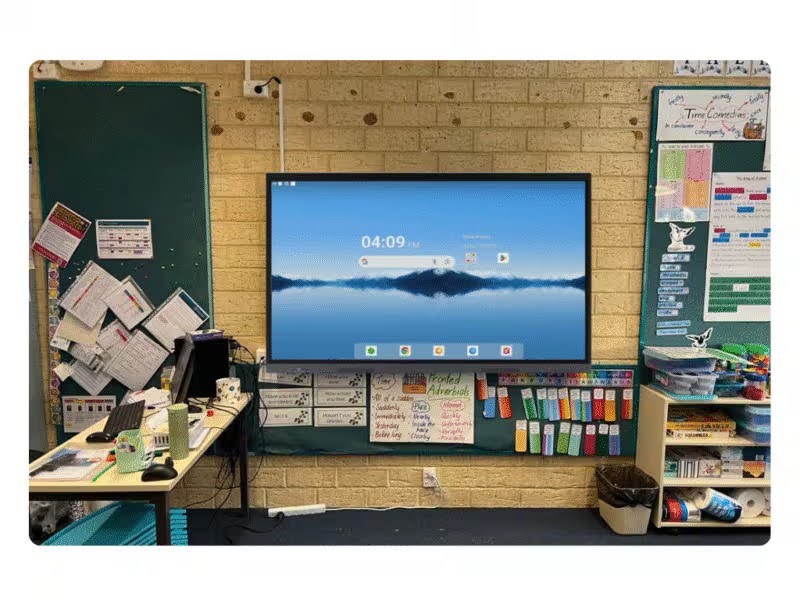
Interactive displays are large-format touchscreen panels that replace traditional whiteboards, projectors, and static screens. They run on built-in operating systems, typically Android, and allow teachers and students to write, draw, annotate, browse the web, run software, and share content from connected devices, all on a single surface.

The modern classroom interactive display is a purpose-built teaching and learning system that integrates with existing school technology, supports multiple input types and comes with dedicated education software designed to make lessons more dynamic.

3 Monkeys AV supplies and installs the EduTouch range of interactive panels, which are available in sizes from 55 to 98 inches and come bundled with free education software applications. 

The EduTouch panels feature 4K ultra-high-definition displays, 20-point touch input, anti-glare toughened glass, and a 7-year on-site warranty.

How Classroom Interactive Displays Create More Engaging Learning Experiences?

The shift from a static display to a classroom interactive display changes what is possible during a lesson, and students notice it instantly. 

Here is how that engagement improvement plays out in practice:

  • Students move from watching to doing: When the display responds to touch, students can come up and interact directly with the content, like solving a problem on screen, moving elements around, annotating a diagram, rather than simply watching the teacher work through it.
  • Lessons become visually dynamic: A teacher can pull up a live web page, annotate over a video mid-playback, or sketch a diagram freehand and have it saved automatically, all without switching between different tools.
  • Group work becomes visible to the whole class: Students working in groups can share their device screen wirelessly to the main display, presenting their thinking to classmates in real time without needing to re-create anything.
  • Instant feedback loops are possible during lessons: Teachers can use interactive tools to run quick polls, drag-and-drop sorting activities, or live quizzes where every student participates and results display immediately.
  • Content can be saved and shared after the lesson: Notes, diagrams, and annotated content from the board can be exported and sent to students so they are not scrambling to copy things down during class.

What Are The Key Features of Interactive Classroom Displays That Support Student Engagement Technology?

Not every interactive panel is built with the classroom in mind. The features that matter most for student engagement technology in an educational setting are specific and practical:

  • 20-point multi-touch input: This allows multiple students to interact with the display simultaneously, which is essential for collaborative activities where small groups work on different parts of the screen at the same time.
  • 4K UHD resolution with anti-glare glass: Sharp, clear visuals make a real difference in a classroom where students sit at various distances from the screen. Anti-glare glass ensures readability under varied lighting conditions, including classrooms with natural light from windows.
  • Built-in whiteboarding and annotation tools: Teachers need to draw, highlight, and annotate over existing content without switching applications. A built-in whiteboarding function makes this seamless.
  • Wireless screen sharing from student devices: When students can share their tablet or laptop screen to the main display wirelessly, collaborative learning and peer presentations become practical in everyday lessons rather than occasional events.
  • Bundled education software: The EduTouch panels come with a suite of education applications included at no extra cost, giving teachers ready-made tools for interactive lessons without requiring additional software purchases.
  • Compatibility with Windows, macOS, Android, and iOS: Teachers and students use a mix of devices across Australian schools. A display that works with all of them reduces friction and keeps lessons moving.

How Digital Classroom Solutions Benefit Teachers and Students?

Teachers gain tools that make content delivery more flexible and responsive, while students benefit from a learning environment that holds their attention and supports their participation. For teachers, the practical benefits include:

  • Preparation time for dynamic lessons decreases once templates and lesson resources are saved on the panel and ready to use at the start of each class.
  • Differentiation becomes easier to deliver when the same display can run different content formats like video, interactive activities, annotated documents, and web-based resources within a single lesson.
  • Classroom management improves when students are actively engaged with what is on the screen rather than distracted or disengaged from a passive lecture.

For students, digital solutions shift the learning experience in concrete ways:

  • Hands-on interaction with content supports retention: The act of physically engaging with a concept reinforces learning in a way that passive viewing does not.
  • Visual and kinaesthetic learners are better served: Not every student learns well from listening alone. A touchscreen display gives different types of learners a way to engage with content that suits how they process information.
  • Confidence grows when students can contribute: Coming to the board to demonstrate thinking is far less intimidating on a responsive, intuitive touchscreen than on a traditional whiteboard under pressure.

What Are the Best Practices for Integrating Classroom Interactive Displays into Daily Lessons?

How teachers use the technology day-to-day determines how much of its potential gets realised. These practices consistently produce better outcomes:

  • Start with one or two features and build from there: Trying to use every capability of a new display at once is overwhelming for teachers and students alike. Begin with annotation and wireless screen sharing, then expand as confidence builds.
  • Use the display for collaborative activities: The full value of student engagement technology emerges when students are regularly interacting with the screen, not just watching the teacher use it.
  • Integrate it into existing lesson plans gradually: A new tool works best when it enhances what you already do well, rather than replacing your whole approach overnight. Start by digitising activities that already work and adding interactivity from there.
  • Set clear expectations for when students approach the display: Establishing a routine for how and when students use the touchscreen keeps the activity purposeful rather than chaotic.
  • Take advantage of the session-saving feature after every lesson: Saving annotated notes and diagrams means students who were absent or who need to revisit content can access an accurate record of what happened in class.

3 Monkeys AV provides staff training as part of every installation, ensuring teachers are comfortable and confident with the system before they use it in front of a class for the first time. Schools that invest in proper initial training see far faster adoption and much more consistent day-to-day use.

How to Choose the Right Interactive Classroom Displays for Your School?

The right classroom interactive display for your school depends on room size, year level, subject mix, and how existing devices are used. There is no single answer that suits every school, which is why a proper assessment matters before any purchase. Here are the practical decisions that shape the right choice:

  • Screen size should match room dimensions and class size: A 65-inch display suits a small group learning room or a junior classroom with students seated close to the front. A standard secondary school classroom with 30 students needs at least 75 to 86 inches for clear visibility from the back of the room.
  • Mounting options affect how the display is used: A fixed wall mount is the standard choice for a permanently assigned classroom. 

An automated height-adjustable trolley makes sense in spaces shared by different year groups, allowing the screen to be positioned at the right height for primary students or secondary students with a push of a button.

  • Warranty and support matter more in schools: Classroom displays face daily use by dozens of students, and a failure mid-term is disruptive. 

The EduTouch range, backed by 3 Monkeys AV, comes with a 7-year onsite warranty, which means repairs and replacements are handled without the school needing to manage logistics.

Schools in Perth and across Western Australia can access expertise in  audio visual in Perth through 3 Monkeys AV, WA’s only authorised EduTouch supplier. 

The team carries out a free site assessment for every school, matching the right panel size, touch technology, and mounting solution to the actual classroom before any money is spent. 

Every project runs directly through the 3 Monkeys team with no subcontractors involved.

Closing Thoughts

Interactive classroom displays are a practical improvement to how learning happens every day. 

They make lessons more engaging, give students more ways to participate, support teachers with flexible and time-saving tools, and produce better outcomes for the full range of learners in a classroom.

If your school is still relying on ageing projectors or static screens, the gap between what your teachers can do and what is now possible with current digital classroom solutions is wider than you might expect. 

A free site assessment is the easiest way to find out what the right setup looks like for your specific spaces.

How Can Interactive Whiteboards Improve Project Planning Sessions?

By Francis Fragomeni,

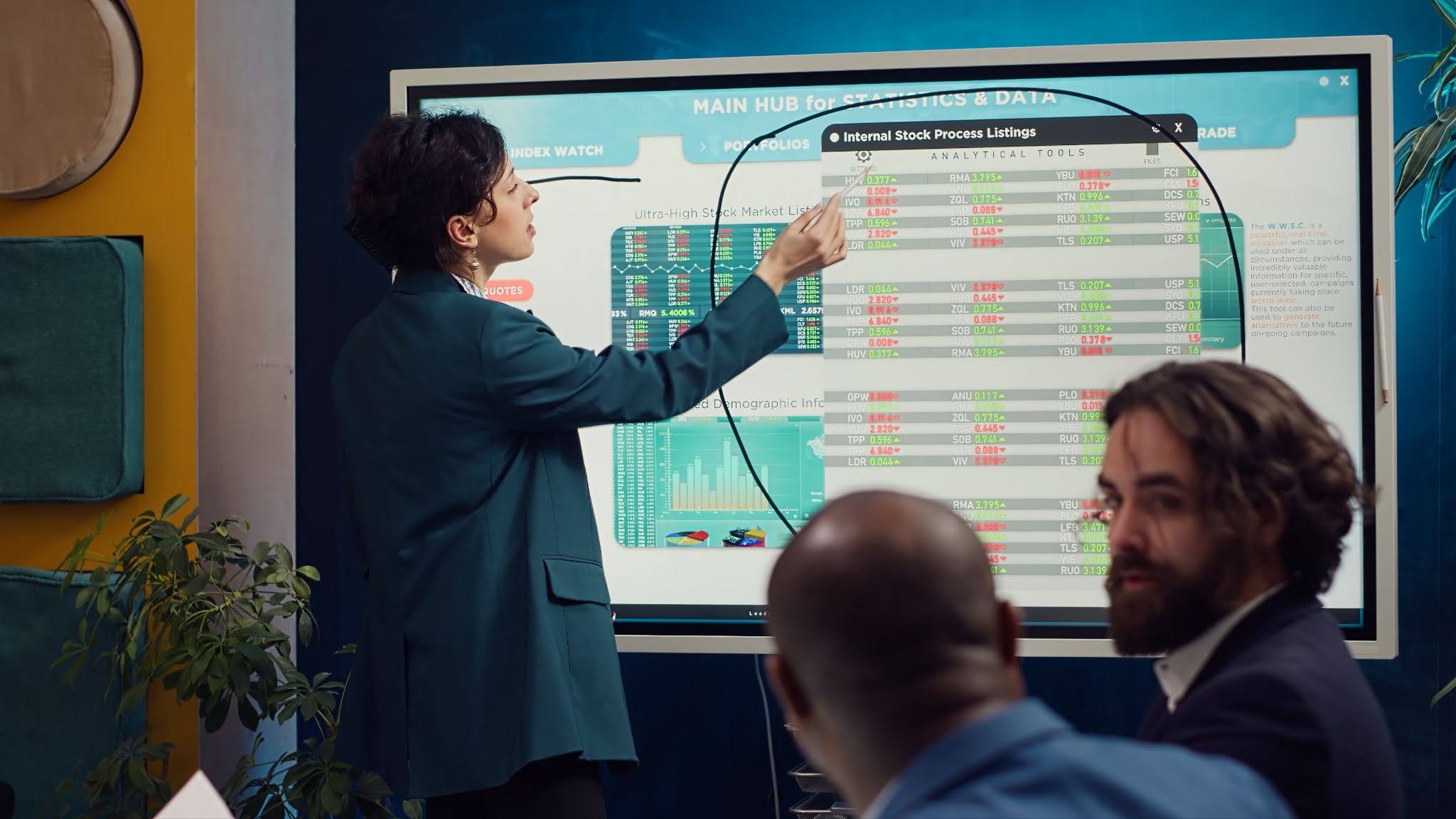
Interactive whiteboards for meetings replace the mess of static slides, half-erased marker boards, and scattered sticky notes with a single live surface where ideas, tasks, and decisions all come together in real time.

If your project planning sessions regularly end with action items scrawled on a napkin or a photo of someone’s whiteboard that no one can quite read, you already know the problem. 

Interactive whiteboards solve it by making the planning process collaborative, visual, and instantly shareable, all without needing a photographer and a prayer.

What Are Interactive Whiteboards for Meetings?

Interactive whiteboards are large touchscreen display systems that let participants draw, annotate, move content, and collaborate directly on screen. 

They are different from a standard presentation display because the surface is fully interactive, as any participant can contribute, whether they are in the room or joining remotely.

The hardware side typically includes a large-format LED panel or an ultra-short-throw projector paired with a flat porcelain whiteboard surface. 

Content from laptops, tablets, and mobile devices can be shared wirelessly onto the screen, and everything created on the board can be saved digitally and sent to participants instantly after the session.

At 3 Monkeys AV, the interactive whiteboard range includes both traditional IWB projector solutions and LED panel options, each suited to different room sizes, usage patterns, and budgets.

Why Does Project Planning Require Better Collaboration Tools?

Project planning is one of the most communication-intensive activities a team does. 

You are aligning stakeholders, mapping timelines, distributing responsibilities, and making decisions that will shape weeks or months of work. 

When the tools you are using are passive, the process falls short. The core problems with static planning tools are easy to spot in practice:

  • Single User Control: Only one person can control the content at a time, slowing down brainstorming sessions and leaving quieter team members as observers instead of active contributors.
  • Delayed Collaboration: Changes made during the meeting often need to be updated manually, shared afterwards, and confirmed, creating delays and increasing the risk of version confusion.
  • Limited Visual Planning: Standard screens are not designed for dynamic collaboration, making it difficult to map workflows, draw dependencies, or update Gantt charts in real time.
  • Poor Remote Participation: Remote attendees often have limited interaction during meetings, as they cannot easily annotate, move content, or contribute to shared boards without being given control.

How Do Interactive Whiteboards for Meetings Streamline Project Planning?

Interactive whiteboards change what is actually possible during a planning session. Here is how that plays out in practical terms:

  • Brainstorming becomes genuinely open: Multiple participants can add ideas to the board simultaneously using touch or a stylus, making a brainstorm feel more like a conversation and less like a presentation.
  • Mind maps and workflows build in real time: Rather than sketching something rough and promising to clean it up later, your team can map dependencies, draw process flows, and rearrange elements on the fly with everyone watching and contributing.
  • Decisions get documented automatically: Because the board is digital, everything created during the session saves as a file at the end. No more “can someone write up what we decided?” emails the following morning.
  • Timeline and task mapping happens directly on screen: Drag timelines, assign owners, and mark milestones in real time while the whole room sees the changes as they happen.
  • Remote participants can contribute on equal terms: When the communal whiteboard connects to your video conferencing platform, remote team members can annotate and add content from their own device.
  • Content from other applications can be pulled straight onto the board: Project documents, Gantt charts, and spreadsheets can be displayed and annotated directly without switching between screens or applications.

What Are The Key Features to Look for in a Digital Whiteboard for Meetings?

Not all interactive display systems are built the same. When you are evaluating a digital whiteboard specifically for project planning, these are the features that matter most:

  • Multi-touch input that supports multiple users at once: A 20-point touch panel lets several people write or manipulate content simultaneously without the system getting confused about which input belongs to whom.
  • Wireless connectivity for any device: Being able to throw a laptop, tablet, or phone screen onto the board without a cable is essential for fast-moving planning sessions where content keeps changing.
  • Built-in whiteboarding and annotation tools: The software should let you draw, write, insert shapes, add sticky notes, and annotate over imported documents without needing a separate application.
  • Session saving and file export in multiple formats: Everything built during a planning session should be exportable as a PDF, image, or editable file so participants leave with the actual output.
  • A large enough screen for the room: A 65-inch panel works in a small meeting room; a larger boardroom needs 86 inches or more. Getting the size right means everyone in the room can clearly see what is happening on screen.
  • Compatibility with your existing platforms: The display should work with Windows, macOS, Android, and iOS devices without a custom driver or complex setup.

What Are The Benefits of Using a Collaborative Whiteboard for Team Meetings?

A communal whiteboard does more than make meetings look modern. It changes how your team thinks together. The most consistent benefits organisations see include:

  • Faster decisions during the meeting: When the whole room sees the same live information and can interact with it directly, groups reach agreement faster than when one person controls a static presentation.
  • Better engagement from all participants: The ability to physically touch and contribute to the content on screen encourages participation from team members who might stay quiet in a standard slide-driven meeting.
  • A cleaner handoff to execution: Because planning outputs are already digital and formatted, handing a project brief or task list to an execution team takes minutes rather than requiring a post-meeting write-up.
  • Fewer follow-up meetings to clarify what was decided: Ambiguity drops when every decision is captured and visible to the whole room as it is made.
  • Greater buy-in from participants: When people actively contribute to a plan rather than observing its construction, they are more likely to feel ownership over the outcome.

What Are The Best Practices for Running Effective Project Planning Sessions with Interactive Whiteboards?

Getting the most out of a collaborative whiteboard during project planning comes down to how you run the session, not just the hardware on the wall.

  • Set up your templates before the meeting starts: Most interactive display systems let you create reusable templates for common planning formats such as sprint planning boards, project timelines, and risk matrices, so you are not building structure from scratch while participants wait.
  • Assign a facilitator, not just a presenter: Someone should own the session flow and make sure contributions are captured clearly on screen. This is different from a traditional presenter role as the facilitator keeps the board organised rather than delivering slides.
  • Share the board access with remote participants before the meeting: If video conferencing companies integration supports it, send remote participants a link so they can contribute directly from the start.
  • Use colour coding to assign ownership: Different colours for different team members or workstreams make a complex project map far easier to read at a glance.
  • End every session by saving and distributing the board output: Send the saved session file to all participants within an hour of the meeting finishing, while the context is still fresh.

How To Choose the Right Interactive Whiteboard for Your Meeting Space?

The right interactive whiteboard depends on your room size, how frequently you use it, and how your teams currently work. 

A small six-person meeting room has very different requirements from a 20-person project planning suite. When evaluating options, consider these practical factors:

  • Room dimensions determine screen size: The general rule is a viewing distance of roughly three times the screen height. For a room where participants sit three to four metres from the display, a 75-to-86-inch screen is typically the right fit.
  • Wall-mount or mobile trolley? Fixed wall installation suits a permanent planning room. A height-adjustable mobile trolley makes sense if the display needs to move between spaces or accommodate different user heights.
  • What devices will participants use? A digital whiteboard that works with every device in the room prevents the session from stalling because one person’s laptop will not connect.

3 Monkeys AV has been supplying and installing interactive display systems for boardrooms, training rooms, and meeting spaces across Perth and Western Australia since 2008. 

The team handles everything from the initial site assessment through to installation and staff training, so your team is confident using the system from day one.

Closing Thoughts

Project planning sessions only deliver what the tools make possible. When your team is working off a static slide deck and a dry-erase board, the best ideas often stay half-formed because there is no easy way to capture and build on them in real time.

Interactive whiteboards change that dynamic directly. They make planning sessions more collaborative, outputs more reliable, and execution clearer. 

If your current meeting room setup is slowing your planning process down, it is worth getting a proper assessment done before the next project kicks off.

How Can Businesses Reduce Meeting Room Downtime with Reliable Video Conferencing Systems?

By Francis Fragomeni,

The quickest way to reduce meeting room downtime is to invest in purpose-built video conferencing systems rather than cobbling together consumer-grade gear and hoping for the best. 

When your conference room equipment is properly selected, professionally installed, and regularly maintained, technical failures stop being a regular part of the working week.

A dropped connection, a camera that will not launch, or a microphone that everyone in the room can hear except the person on the other end. These issues cost real time and real money. 

Professional video conferencing installation is what separates a meeting space that reliably works from one that your team actively avoids booking.

Why Reliable Video Conferencing Matters for Business Continuity

Unreliable meeting room technology is not just an inconvenience. It has a direct and measurable impact on business continuity.

When a video conference fails mid-meeting, the consequences stack up quickly. Decision-making gets delayed. Client calls need to be rescheduled. Staff waste time troubleshooting instead of contributing. 

Over the course of a year, even a few minutes of downtime per meeting adds up to dozens of hours of lost productivity across your organisation. Reliable systems solve this by doing what they are supposed to do, every single time:

  • Calls connect within seconds rather than requiring manual configuration or a reboot before each session.
  • Audio and video quality stays consistent throughout the meeting, even as participants join and leave.
  • The system integrates with your calendar and booking tools so rooms are used efficiently and double-bookings are eliminated.
  • Faults are detected early through monitoring tools built into enterprise-grade conference equipment, rather than discovered mid-call by a frustrated team.

What Are The Essential Conference Room Equipment for Reliable Video Conferencing Systems? 

The quality of a video conference is only as good as the weakest link in the room’s setup. Getting the core hardware right from the start is what prevents most downtime. Here is what a properly equipped meeting room needs:

  • A dedicated video bar or camera system: Consumer webcams are not built for conference room environments.

    Professional options like the Logitech Rally Bar or the Yealink A40 Bar offer automated PTZ tracking, wide-angle lenses, and processing that handles variable room lighting far better than a laptop camera can.
  • A microphone array suited to the room size: A small huddle space works well with an all-in-one conference bar featuring built-in audio.

    Larger boardrooms need ceiling array microphones or beamforming table units so every voice in the room is captured cleanly, regardless of where participants sit.
  • Echo cancellation and noise suppression processing: Without this, remote participants hear themselves echoed back, conversations become difficult to follow, and meeting fatigue sets in fast.
  • A reliable display sized correctly for the room: A screen that is too small for the space means participants cannot read shared content, which defeats the purpose of the meeting.
  • A room control panel or touch interface: A single panel that manages the call, the display, the audio, and the room lighting removes the guesswork for staff and ensures the system is used correctly every time.
  • A stable, dedicated network connection: Video conference performs far more reliably on a wired or dedicated wireless network than on a shared office Wi-Fi network that fluctuates throughout the day.

3 Monkeys AV designs and installs complete packages for boardrooms, meeting rooms, and huddle spaces across Perth, pairing the right hardware to the room size and meeting frequency of each space.

What Are The Best Practices for Reducing Meeting Room Downtime with Video Conferencing Systems?

Having the right equipment is the foundation, but how you manage and use it determines whether downtime stays low over time. These practices make a measurable difference:

  • Standardise your setup across meeting rooms: When every room runs on the same video systems and control interface, staff learn the setup once and apply it everywhere. Rooms with unique, incompatible setups create confusion and avoidable errors.
  • Schedule regular preventive maintenance: Firmware updates, connection checks, and equipment inspections catch problems before they interrupt a meeting. An annual support plan from a provider like 3 Monkeys AV keeps your systems current and your team supported.
  • Post simple, laminated quick-reference guides in each room so staff can resolve basic issues like switching inputs or adjusting volume without calling IT.
  • Run a test call before high-stakes meetings such as client presentations or executive briefings. A five-minute pre-check prevents a thirty-minute delay.
  • Keep a spare HDMI cable and USB-C adapter in each room: Connectivity cables are the most common point of failure in meeting rooms, and the fix takes seconds when a replacement is on hand.
  • Log recurring faults: If a specific room or piece of equipment generates repeated complaints, that pattern points to a hardware issue or installation problem worth addressing properly.
  • Ensure all software platforms are kept up to date on room systems. Outdated software causes compatibility issues with remote participants running newer versions.

How Hybrid Meeting Solutions Improve Business Productivity?

The modern Australian workplace is increasingly split between in-office and remote staff. 

Hybrid meeting solutions are what allow those two groups to collaborate without one side feeling like an afterthought. When hybrid meetings work properly, the whole organisation benefits:

  • Remote participants see and hear the room as if they were there. Auto-framing cameras keep the active speaker in view, and clear audio means no one has to repeat themselves.
  • In-room participants can engage with remote colleagues naturally. A properly sized display showing remote faces at near-life size changes the dynamic of a meeting completely.
  • Flexible working becomes genuinely viable. When staff trust that a hybrid call will be just as productive as an in-person meeting, they make better decisions about where to work on any given day.

Office pods with integrated video conferencing are a growing part of the hybrid meeting solution for open-plan offices.
These acoustically insulated spaces give staff a private, quiet environment for calls without the need to book a full meeting room.

3 Monkeys AV offers a range of one, two, four, and six-person pods with optional BYOD video conferencing built in.

When hybrid meeting solutions are implemented well, they close the gap between remote and on-site work rather than just bridging it awkwardly.

What Are the Common Video Conferencing Challenges and How to Prevent Them?

Even with good equipment, certain problems come up repeatedly in business meeting rooms. Here is how to get ahead of them:

  • Echo and feedback during calls: This usually means the room’s microphone is picking up the speaker audio. The fix is acoustic treatment, better microphone placement, or switching to a system with professional-grade echo cancellation built in.
  • Poor video quality in low-light rooms: A camera with low-light compensation helps, but the room also needs adequate, even lighting, particularly facing the participants rather than backlighting them from behind.
  • Remote participants cannot hear one part of the room: This is almost always a microphone coverage issue. A single tabletop mic rarely covers a full boardroom. Ceiling arrays or multiple tabletop units solve this.
  • The system does not connect to the platform staff are using. Conference equipment certified for Microsoft Teams or Zoom Rooms avoids cross-compatibility issues entirely. 3 Monkeys AV holds certifications on both platforms.
  • Staff bypass the installed system and use their laptop instead. This happens when the installed system is too complex to use quickly. Simplifying the control interface or providing better training resolves the behaviour.
  • Wireless presentation tools drop out mid-meeting. This is usually a network issue. A dedicated VLAN or wired backup option keeps content sharing reliable.

How to Choose the Right Video Conferencing System for Your Business?

The right systems for your business depend on how your rooms are used, how many participants join remotely, and what platforms your teams rely on daily. Start by answering these questions before selecting equipment:

  • Room Size: Small huddle rooms require different cameras, microphones, and speakers than large boardrooms or conference spaces. Choose equipment designed to provide clear audio and video coverage for the size of your room.
  • Meeting Type: Consider whether the room is primarily used for internal team meetings or external client and partner calls. Spaces that regularly host external meetings often benefit from higher-quality cameras, microphones, and displays to deliver a more professional experience.
  • Collaboration Platform: Select a system that is certified for the platform your organisation uses most, such as Microsoft Teams or Zoom. Platform-certified solutions provide better performance, simpler management, and a more reliable user experience than generic systems.
  • Hybrid Meeting Requirements: If your business regularly hosts hybrid meetings, invest in high-quality microphones, intelligent cameras, and appropriately sized displays. These features help ensure both in-room and remote participants can communicate and collaborate effectively.

3 Monkeys AV offers a free AV systems analysis as a starting point. A practical site assessment worth $250 that maps your spaces to the right solutions before any money is spent on equipment. 

With more than 10,000 installations completed across Perth and Western Australia, the team brings the kind of experience that means recommendations are based on what actually works in real rooms, not what looks good in a brochure.

Closing Thoughts

Meeting room downtime is a solvable problem. It comes down to choosing the right conference equipment for each space, having it professionally installed, keeping it maintained, and giving your staff the confidence to use it without a support call.

Businesses that invest in reliable systems stop losing time to technical failures and start getting more value out of every meeting. 

The starting point is to talk to a specialist who understands both the technology and how Australian workplaces actually use it.

How Does an Integrated Audio Visual Solution Improve Workplace Communication?

By Francis Fragomeni,

Integrated audio visual makes communication faster, clearer, and far less frustrating. When your displays, speakers, cameras, and control systems all work together as one connected setup, your team stops wrestling with technology and starts actually getting things done.

If you’ve ever watched a meeting grind to a halt because someone couldn’t share their screen, or a training session fall flat because the sound kept cutting out, you already understand the problem. 

Properly integrated audio visual in Perth is helping workplaces across Western Australia address these challenges more effectively.

What Are Integrated Audio Visual Solutions?

Integrated audio visual brings multiple AV components such as displays, microphones, speakers, cameras, control panels, and software platforms into a single unified system that communicates seamlessly. Instead of separate devices that you manually connect and configure each time, everything works together automatically.

Think of it as the difference between a kitchen where every appliance has its own app, its own plug, and its own remote versus one that is smartly set up so everything works off a single panel. AV integration does the same for your workplace technology.

At 3 Monkeys AV, this is exactly the approach the team brings to every installation, custom designing a solution that fits your space, your people, and the way your business actually operates.

How Does AV Integration Improve Communication Across Teams?

Audio-visual integration removes the friction points that slow communication down. Here is how it shows up in a practical, day-to-day sense:

  • Meetings start on time because room setup is instant: Integrated systems allow you to walk in, tap one button, and have your display, camera, microphone, and video call platform ready to go. No more hunting for the right cable or waiting for a laptop to connect.
  • Remote participants can actually see and hear what is happening: With a properly calibrated camera and ceiling or table microphone array, remote team members get consistent audio and a clear picture rather than a fuzzy webcam feed and patchy sound.
  • Presenters can share content from any device without re-configuring the room: Wireless presentation tools built into the system mean you switch between presenters in seconds, not minutes.
  • Notifications and updates reach staff in real time through digital signage: Corridor screens, lobby displays, and breakout area monitors all feed from the same content source, keeping everyone on the same page without sending another email.
  • Collaboration between departments becomes easier when systems speak the same language: When your boardroom, training room, and huddle spaces all run on a common workplace communication technology platform, sharing content or joining a cross-team call takes one click.

What Are The Key Components of an Integrated Audio Visual Solution?

A well-built Audio-visual integration setup is not just a big screen on a wall. It is a carefully selected stack of hardware and software working as one. The main components include:

  • Displays and video walls: From boardroom screens to large-format video wall installations for reception areas and training centres, the display is your primary communication surface. Size, resolution, and placement all matter depending on the room and the audience.
  • Conference cameras: Auto-framing cameras track speakers around a room, ensuring remote participants always have a clear view without a staff member manually panning the lens.
  • Microphone systems: Ceiling array mics, beamforming tabletop units, and wireless lapel options all serve different room sizes and meeting styles. Getting the microphone right is often the single biggest improvement a business can make to its meeting quality.
  • Audio processing and speakers: Echo cancellation and noise suppression built into the audio processing system make voices sound natural whether you are in a tiled boardroom or an open-plan space.
  • Control systems and touch panels: A single touch panel that operates every device in the room makes the technology accessible to every staff member, not just the tech-savvy ones.
  • Room booking and scheduling displays: Screens outside meeting rooms that show live availability and let staff book directly from the door reduce double-booking and the awkward interruptions that follow.
  • Connectivity and cabling infrastructure: The backbone of any integrated system is a clean, reliable signal path between every device.

What Are The Benefits of Integrated Audio Visual Solutions for Modern Workplaces?

The business case for investing in integrated audio visual goes well beyond better-looking meetings. Here is what organisations actually gain:

  • Measurable productivity gains: When the technology works reliably and intuitively, meetings run shorter, and decisions happen faster. Staff are not spending the first ten minutes troubleshooting.
  • Reduced IT support burden: A properly integrated system, installed correctly from the start, generates fewer faults and fewer calls to your IT team. 3 Monkeys AV backs installations with service, repairs, and annual support plans that keep everything running.
  • Better engagement in presentations and training: Interactive displays, clear audio, and well-positioned screens keep audiences focused rather than straining to read tiny text or hear muffled sound.
  • Consistent experience across all meeting rooms: When every room runs on the same workplace communication technology, staff know exactly how to use the space regardless of which room they are in.
  • Scalability as your business grows: A system designed with Audio-visual integration principles is much easier to expand when you add new rooms, new staff, or new locations.
  • Professional impression for clients and visitors: A polished, responsive AV setup in your reception or boardroom signals to visitors that your organisation is modern and organised.

What Are The Signs Your Workplace Needs an Integrated Audio Visual Solution?

Not sure if your current setup is holding you back? These are the clearest indicators that it is time to upgrade:

  • Meetings regularly start late because staff cannot connect their devices or get the display working.
  • Remote participants complain they cannot hear the room clearly, or you cannot hear them without shouting.
  • Your meeting rooms each require a different setup process, so staff avoid using certain spaces.
  • You rely on personal laptops and consumer-grade webcams as your primary conference tools.
  • There is no way to book or check the availability of a meeting room without walking down the corridor.
  • Your current AV equipment was installed more than five to seven years ago and has not been reviewed.

Choosing the Right Audio Visual Partner for Your Business

Getting the technology right starts with getting the right team involved. A good AV partner assesses your space, understands how your teams communicate, and designs a system that solves your specific problems.

3 Monkeys AV has been designing, supplying, and installing AV systems across Perth and Western Australia since 2008, with over 10,000 installations completed and more than 60 years of collective experience across the team. 

They offer a complimentary site inspection and AV systems analysis, so you get expert advice before spending a dollar. When evaluating any AV partner, look for these qualities:

  • They ask about how you work, not just what gear you want: Room size, meeting frequency, number of remote participants, and daily workflows all shape the right solution.
  • They handle the full project: From design and supply through to installation, training, and ongoing support, a single partner reduces complexity and accountability gaps.
  • They are certified in leading AV platforms and technologies: 3 Monkeys AV is certified for Logitech, Yealink, Jabra, Crestron and Cisco video conferencing design and installation, giving businesses access to technicians trained to design and install solutions using these leading technologies.
  • They offer post-installation support: An annual support plan for your AV and video conferencing systems means issues get resolved quickly rather than left for your team to work around.

Closing Thoughts

Better workplace communication happens by connecting the right ones properly. Integrated audio visual solutions remove the daily frustrations that chip away at productivity, keep remote and in-person teams working together effectively, and give your business a professional edge that staff and visitors notice.

If your current setup is creating more problems than it solves, it is worth having a conversation with a specialist. 

3 Monkeys AV offers a free AV systems analysis to help you understand exactly what your workplace needs and what it would cost to get there.

How Can Video Walls Enhance Customer Experience and Internal Communications?

By Francis Fragomeni,

Video walls turn a blank wall into your most powerful communication tool, whether that’s grabbing customer attention at reception or getting an important message out to every staff member at once. 

They deliver bigger, brighter, more flexible visuals than a single screen ever could. If your business is weighing up how to make a bigger impression in your space, a video wall is one of the most effective upgrades you can make.

Here’s how they work, and where they actually pay off.

What Are Video Walls and Why Are They Used in Modern Business Environments?

A video wall is a group of screens or LED panels joined together to display one large image, or several pieces of content at once, across a much bigger surface than a standard TV. 

Businesses use them because they solve a problem single screens can’t: getting noticed and communicating clearly across large, busy, or high-traffic spaces. They’re becoming standard in modern workplaces and venues for a few reasons:

  • Reception areas and lobbies need something that makes a strong first impression on visitors and clients.
  • Open offices need a way to broadcast company news, KPIs, or safety alerts without emailing everyone.
  • Retail and hospitality spaces need eye-catching displays that draw people in and hold their attention.
  • Screens can be sized and shaped to fit almost any wall, booth, or feature space, unlike a fixed TV.

Because the panels are modular, a video wall can be built to whatever size and shape the space calls for, from a compact reception display to a full feature wall spanning an entire room.

How Do Video Walls Enhance Customer Experience?

Video walls enhance customer experience by giving businesses a bigger, sharper, more engaging way to communicate with the people walking through their doors. 

Instead of a static poster or a single small screen, customers get a visual experience that actually holds their attention. Here’s what that looks like in practice:

  • Retail stores use video walls to show product ranges, promotions, and brand stories at a scale customers can’t ignore.
  • Hospitality venues use them to broadcast live sport, events, or entertainment with crisp visuals and wide viewing angles, even in bright rooms.
  • Reception areas use them to welcome visitors by name, display wayfinding information, or run a rotating showcase of the business.
  • Retail and entertainment venues use video walls to turn an ordinary space into something customers actively want to walk into and stay in.

This is where the video wall benefits really stand out against traditional signage. A well-placed wall creates atmosphere, and atmosphere is what keeps people in a venue longer and coming back.

What Are the Key Video Wall Benefits for Businesses?

The video wall benefits go well beyond looking impressive. For the business behind the screen, a well-installed wall solves several real problems at once:

  • Flexible content: one wall can show a single large image, split into multiple content zones, or cycle through different campaigns throughout the day.
  • Scalable size: panels can be added or reconfigured as your space or budget changes, so you’re not locked into one fixed screen size.
  • Durability: commercial-grade panels are built to withstand all-day, everyday use.
  • Brighter, clearer visuals: wide viewing angles and strong brightness mean the content reads clearly from across a room or in daylight.
  • Better return on wall space: a video wall replaces static signage, posters, and multiple smaller screens with one flexible display.

How Do Commercial Video Wall Solutions Improve Internal Communications?

Commercial video wall solutions give internal teams a single, unmissable channel for company-wide communication. 

Instead of relying on emails that get buried or noticeboards nobody reads, staff see the message the moment they walk past the wall. Businesses typically use them for:

  • Live dashboards showing sales figures, production numbers, or performance KPIs across a team or department.
  • Company announcements, event countdowns, and recognition of staff milestones.
  • Safety alerts and emergency messaging that need to reach everyone in a building fast.
  • Meeting room and training room displays for presentations, video conferencing, and collaboration sessions.

What Features Should Businesses Consider When Choosing Digital Video Wall Displays?

Choosing the right digital video wall displays comes down to matching the technology to the space and how it will actually be used. A few features are worth checking before you commit:

  • Resolution and pixel pitch: closer viewing distances need a finer pixel pitch for crisp, clear detail.
  • Brightness levels: spaces with lots of natural light or outdoor visibility need brighter panels to stay readable. Additionally, LED walls need to be tuned down sometimes in darker spaces, as they can be too bright to see the image.
  • Content management software: check how easy it is to update, schedule, and manage what’s showing across the wall.
  • Size and configuration: consider whether you need one large image or several content zones.
  • Ongoing support: warranty terms, servicing, and repairs matter for a display that’s expected to run daily for years.

Which Industries Can Benefit From Video Wall Installations?

Video walls suit almost any business that needs to inform, impress, or engage an audience, but a few industries get particularly strong results:

  • Retail stores, using walls to showcase products, run promotions, and build brand presence on the shop floor.
  • Hospitality venues, using walls to broadcast sport, entertainment, and events that keep patrons in their seats longer.
  • Schools and education, using walls in halls and undercover areas for assemblies, events, and everyday announcements.
  • Corporate offices, using walls in reception and boardrooms for client presentations and internal reporting.
  • City councils and recreation centres, using walls for public information, wayfinding, and event promotion.

If you’re weighing up whether a wall makes sense for your venue, it helps to talk it through with Audio Visual specialists in Perth who can walk you through sizing, placement, and content options for your specific space.

Closing Thoughts

A video wall does more than fill space on a blank wall. It gives customers a reason to pay attention, and it gives your team a reliable way to stay informed, all from one flexible display. 

The case for investing in commercial video wall solutions is a strong one for most businesses, regardless of whether you’re after stronger customer engagement, sharper internal communication, or both.